Bareos — Enterprise Backup & Recovery for QNAP
Platform: QNAP QTS & QuTS hero
Architecture: x86_64 / ARM64
License: GNU AGPLv3 (Bareos upstream; additional components may have different licenses)
Docker Required: No
Support done on Discord Channel with your logs
Overview
Bareos (Backup Archiving Recovery Open Sourced) is a powerful, open-source, enterprise-grade backup and recovery solution designed to protect servers, workstations, databases, and network infrastructures.
This native QNAP integration brings the Bareos backup ecosystem directly to your NAS, without Docker, virtualization, or Container Station.
It combines the proven Bareos backup engine with a modern, lightweight administration dashboard developed in Go, seamlessly integrated into the QNAP desktop.
Whether you are protecting a home server, managing multiple workstations, or building a centralized backup infrastructure, Bareos provides a flexible and professional solution for managing your data protection strategy.
Key Features
Native QNAP Integration
- Fully native installation, without Docker or containers.
- Compatible with QTS and QuTS hero.
- Integrated QNAP App Center launcher.
- QTS reverse proxy support.
- QNAP QuLog Center notifications.
- Dedicated start, stop, restart, and diagnostic utilities.
- Designed for ext4 and ZFS storage environments.
Complete Backup Infrastructure
- Bareos Director for centralized job management.
- File Daemon for data protection.
- Storage Daemon for backup storage management.
- Embedded PostgreSQL database for the backup catalog.
- Bareos Console for advanced administration.
- Support for full, differential, and incremental backups.
- Backup scheduling, retention policies, and media management.
Modern Web Administration
- Lightweight and responsive Go-based dashboard.
- Multilingual interface with 20 supported languages.
- Light and dark themes.
- Real-time monitoring of core services.
- Backup job execution and history.
- Client and storage monitoring.
- Backup health and graphical activity timeline.
- Filesystem capacity monitoring.
- Integrated diagnostics and log viewer.
- Configuration and notification settings.
Recovery & Data Protection
- Guided recovery procedures.
- Backup catalog inspection.
- Restore preflight checks.
- Isolated restore verification tools.
- Encrypted configuration export and import.
- Secure handling of backup credentials.
- Protection of existing configuration and catalog data during compatible upgrades.
Security
- Independent administrator authentication.
- Mandatory password change at first login.
- Secure administrator credential rotation.
- Session protection and CSRF validation.
- Restricted access to sensitive operations.
- Localhost-bound administration service.
- HTTPS access through the QNAP reverse proxy.
- ZFS/RichACL-aware permission handling.
- Protected configuration files and diagnostic exports.
Notifications & Monitoring
- SMTP email notifications.
- Microsoft Graph integration for Microsoft 365.
- Compatible HTTPS webhooks.
- Backup failure alerts.
- Service availability monitoring.
- System diagnostics and troubleshooting information.
Quick Start — Getting Started with Bareos
Step 1 — Install Bareos
Install Bareos using the QNAP App Center.
After installation, start the application and allow the required services to initialize.
Bareos runs directly on your NAS. No Docker or additional container environment is required.
Step 2 — Open the Administration Dashboard
Open Bareos from the QNAP App Center.
The integrated administration dashboard opens through the QNAP desktop and its reverse proxy.
The dashboard provides centralized access to service monitoring, backup operations, configuration, and diagnostics.
Step 3 — First Login
During initial installation, Bareos generates a temporary administrator password.
You can retrieve it from:
- QNAP QuLog Center, in the application notifications.
- The protected file
/opt/Bareos/var/admin/INITIAL_PASSWORD, accessible to an authorized NAS administrator through SSH.
Enter the temporary password on the Bareos login page.
Important: You must change the temporary password during your first login.
Choose a strong, unique password and keep it in a secure password manager.
Step 4 — Check Service Status
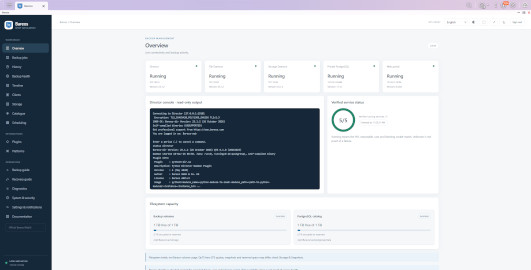
Open Overview in the Bareos dashboard.
Verify that the following services are running:
- Bareos Director
- File Daemon
- Storage Daemon
- PostgreSQL
- Web Administration Portal
The dashboard should report 5/5 services operational when the complete local infrastructure is running correctly.
If a service is unavailable, open Diagnostics to inspect the corresponding logs.
Step 5 — Configure Your First Backup
Bareos uses configurable backup resources, including clients, FileSets, jobs, pools, and schedules.
For your first backup:
- Open Backup Guide to prepare a configuration preview.
- Select the NAS directory you want to protect.
- Define an appropriate backup job.
- Review the generated configuration.
- Apply and validate the configuration using the Bareos administration tools.
- Open Backup Jobs to execute the configured backup.
Note: The Backup Guide generates configuration previews. It does not automatically apply them to the Director.
Advanced configurations can be managed using the Bareos Console (bconsole).
Step 6 — Monitor Your Backups
Once your backup jobs are configured, use the administration dashboard to monitor operations.
- Overview: Check overall service availability.
- Backup Jobs: Run configured backup jobs.
- History: Review completed and failed operations.
- Backup Health: Identify backup failures and warnings.
- Timeline: Visualize recent backup activity.
- Storage: Inspect backup media and volumes.
- Catalogue: Explore backup metadata.
The dashboard provides operational visibility without requiring constant command-line access.
Step 7 — Test Your Recovery
A backup is only useful if the data can be restored successfully.
After completing your first backup:
- Open Recovery Guide.
- Identify the backup job to restore.
- Perform a test restore into a separate directory.
- Verify the restored files and their integrity.
- Confirm that permissions and file contents are correct.
Some recovery procedures require the Bareos Console and administrator access through SSH.
Never overwrite production data during your first restoration test.
Advanced Configuration
Bareos supports a wide range of backup environments, including Linux servers, Windows workstations, network storage, databases, and virtualized infrastructures.
Additional File Daemons, compatible plugins, SDKs, or commercial components may be required depending on the workloads being protected.
The native QNAP dashboard provides monitoring and selected management functions. It does not replace every capability of the official Bareos WebUI or the Bareos Console.
For advanced configuration, refer to the official Bareos documentation.
Important Notes
- The Bareos backup catalog is maintained in a dedicated PostgreSQL instance.
- Backup storage locations and temporary directories can be configured.
- Existing configuration and catalog data are designed to be preserved during compatible updates.
- QuTS hero ZFS permissions are handled conservatively to avoid unintended ACL modifications.
- Some backup integrations require additional software or external agents.
- Always verify recovery procedures before using Bareos to protect critical production systems.
Official Resources
Official Website:
https://www.bareos.com/
Source Code:
https://github.com/bareos/bareos
Documentation:
https://docs.bareos.org/
License:
https://github.com/bareos/bareos/blob/master/AGPL-3.0.txt
Credits & Disclaimer
Bareos is developed by Bareos GmbH & Co. KG and the open-source Bareos community.
This QNAP native integration and its Go administration portal are independently developed and maintained by Qoolbox.
This package is not an official product of Bareos GmbH and is not affiliated with or endorsed by Bareos GmbH.
All trademarks belong to their respective owners.
Bareos for QNAP — Enterprise backup, native performance, complete control.
Protect your data. Monitor your infrastructure. Restore with confidence.
Last update: 18 November 2026