
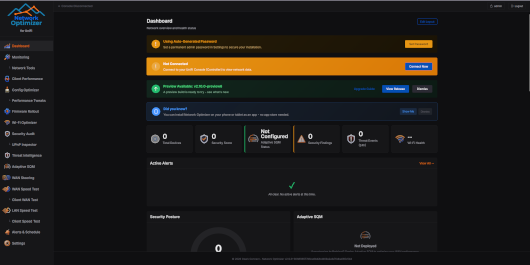
NetworkOptimizer is a powerful, self-hosted network monitoring, optimization and security auditing solution designed for Ubiquiti UniFi environments.
This native QNAP package runs directly on QTS 6 and QuTS hero 6 without Docker, providing a centralized web interface to monitor network performance, analyze Wi-Fi quality, identify security risks and optimize UniFi configurations.
Key Features
- UniFi Network Monitoring: Monitor network devices, clients, connectivity and overall network health.
- Wi-Fi Optimization: Analyze wireless performance, channel utilization, interference and configuration.
- Security Auditing: Identify potential vulnerabilities, firewall issues and network configuration weaknesses.
- Configuration Optimization: Receive recommendations to improve UniFi network performance and security.
- Speed Testing: WAN and LAN performance testing with iperf3 integration.
- Adaptive SQM: Advanced traffic management and bufferbloat optimization.
- Alerts & Scheduling: Automated network checks, monitoring and notifications.
- Multi-Site Management: Centralized visibility across multiple UniFi sites.
- Persistent Configuration: Application settings, credentials and databases are preserved during package updates.
Requirements
- QTS 6.x or QuTS hero 6.x
- x86_64 or ARM64 NAS
- Apache85 QPKG dependency (provides ICU libraries)
- Minimum 2 GB RAM recommended
- Network connectivity to a UniFi Controller
The application uses a self-contained .NET 10 runtime. No Docker, external Python runtime or separate .NET installation is required.
Quick Start
1. Installation
Install Apache85 first, then install the NetworkOptimizer QPKG package.
2. Access the Web Interface
Open your browser and navigate to:
http://YOUR_NAS_IP:8042
3. Initial Login
Default username: admin
The administrator password is automatically generated during the first startup.
Find it in the QNAP system event logs (when available) or inspect the application log via SSH:
grep -i -A5 'AUTO-GENERATED' /opt/NetworkOptimizer/logs/runtime.log4. Connect Your UniFi Controller
Open Settings in NetworkOptimizer, enter your UniFi Controller URL and configure a dedicated local UniFi account with the required permissions.
Ubiquiti cloud SSO credentials are not supported for this connection.
5. Start Monitoring
Open the Audit dashboard to perform your first network security assessment. Explore Wi-Fi Optimizer, network monitoring and speed-testing features.
Some advanced operations require SSH access to your UniFi gateway or devices.
Service Management
/opt/NetworkOptimizer/start.sh
/opt/NetworkOptimizer/stop.sh
/opt/NetworkOptimizer/restart.sh
/opt/NetworkOptimizer/status.sh
/opt/NetworkOptimizer/healthcheck.sh
Default Web Port: 8042 (HTTP)
Installation Directory: /opt/NetworkOptimizer
Runtime Logs: /opt/NetworkOptimizer/logs
For remote access, use a properly configured HTTPS reverse proxy rather than exposing the HTTP interface directly to the Internet.
Source Code & Documentation
Official GitHub repository:
https://github.com/Ozark-Connect/NetworkOptimizer
Official documentation:
https://github.com/Ozark-Connect/NetworkOptimizer/blob/main/README.md
Original project developed by Ozark Connect.
QNAP native packaging provides an alternative deployment method specifically adapted for QTS and QuTS hero environments.
Last update: 18 October 2026