
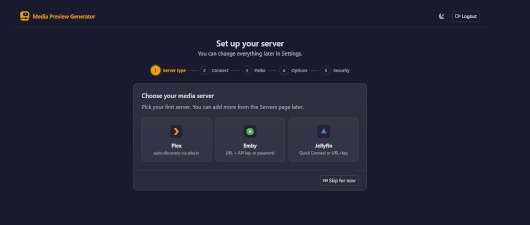
Media Preview Generator (MPG-Q6) is a media preview and thumbnail generation solution for QNAP NAS systems running QTS 6 or QuTS hero 6.
It provides a web-based interface for managing media processing tasks, generating previews and thumbnails, and analyzing media files.
MPG-Q6 integrates with QMultimedia-Q6, reusing its Python 3.13 environment, FFmpeg and FFprobe binaries to avoid unnecessary duplication of multimedia components.
Features
- Modern web-based management interface
- Media preview and thumbnail generation
- Video and image processing
- MediaInfo integration for detailed media metadata
- FFmpeg and FFprobe integration through QMultimedia-Q6
- Support for Intel/AMD x86_64 and ARM64 architectures
- Automatic startup with the NAS
- Dedicated start, stop, restart, status and health-check scripts
- Authentication token for web interface access
- Persistent configuration across package updates
- Dedicated application logs
- Integration with QTS App Center
Hardware acceleration, HDR processing and advanced media features depend on the capabilities of the NAS hardware, drivers and installed FFmpeg build.
Compatibility
Supported operating systems:
- QNAP QTS 6.x
- QNAP QuTS hero 6.x
Supported architectures:
- x86_64 (Intel / AMD)
- ARM64 (aarch64)
Required dependency:
- QMultimedia-Q6, providing Python 3.13, FFmpeg and FFprobe
QMultimedia-Q6 must be installed and enabled before starting MPG-Q6.
Quick Start
1. Install QMultimedia-Q6
Download and install the latest compatible QMultimedia-Q6 package from myQNAP.org.
Make sure the dependency is running correctly before proceeding.
2. Install MPG-Q6
Download the MPG-Q6 package matching your NAS architecture.
Open QTS App Center → Install Manually, select the downloaded package and complete the installation.
3. Open the Web Interface
Launch MPG-Q6 from the QTS desktop or App Center.
Alternatively, open the following address in your browser:
http://NAS-IP:14578
Replace NAS-IP with your NAS IP address or hostname.
Default web port: 14578/TCP
4. Retrieve Your Authentication Token
MPG-Q6 uses an authentication token to protect access to its management interface.
To locate your token:
- Log in to your NAS administration interface.
- Open QuLog Center.
- Navigate to Event Logs / System Event Logs.
- Look for an event generated by MPG-Q6.
- Copy the authentication token displayed in the event details.
- Return to the MPG-Q6 login page and paste the token into the authentication field.
Important: Keep your authentication token confidential. Anyone possessing a valid token may be able to access the MPG-Q6 management interface.
If the token is not visible in QuLog Center, check the application startup logs or verify that MPG-Q6 started successfully.
5. Configure the Application
After authentication, configure the available media processing options according to your requirements.
Verify that your media directories are accessible and that the NAS has sufficient storage space for generated previews.
6. Start Processing
Use the web interface to configure and manage your media preview generation tasks.
Processing performance depends on the NAS CPU, available memory, storage performance and FFmpeg capabilities.
Service Management
MPG-Q6 is installed under:
/opt/MPG-Q6
The following commands can be executed through SSH.
Start the application:
/bin/sh /opt/MPG-Q6/start.sh
Stop the application:
/bin/sh /opt/MPG-Q6/stop.sh
Restart the application:
/bin/sh /opt/MPG-Q6/restart.sh
Check application status:
/bin/sh /opt/MPG-Q6/status.sh
Run a health check:
/bin/sh /opt/MPG-Q6/healthcheck.sh
Network Configuration
Default web interface: http://NAS-IP:14578
Default port: 14578/TCP
Protocol: HTTP
The web port can be customized through the package configuration.
For remote access, a secure reverse proxy with HTTPS or a VPN is recommended. Avoid exposing the HTTP management interface directly to the public internet.
Logs and Troubleshooting
Application logs are stored in:
/opt/MPG-Q6/logs/
If MPG-Q6 fails to start, inspect the startup and Gunicorn logs.
Common checks include:
- Verify that QMultimedia-Q6 is installed and running.
- Confirm that Python 3.13, FFmpeg and FFprobe are available.
- Ensure that TCP port 14578 is not already in use.
- Check the application logs for startup or dependency errors.
- Verify that the authentication token is available in QuLog Center.
- Run the health-check script to diagnose service availability.
MPG-Q6 relies on compatible Python and OpenSSL libraries supplied by QMultimedia-Q6. Avoid overriding these libraries with incompatible third-party versions.
Updates and Configuration Persistence
MPG-Q6 is designed to preserve existing application configuration during package updates.
For additional safety, back up your configuration before performing major upgrades.
Keep MPG-Q6 and QMultimedia-Q6 updated to compatible versions.
Important Notes
MPG-Q6 is designed specifically for QNAP NAS systems running QTS 6 or QuTS hero 6.
Advanced hardware acceleration depends on the NAS model, installed drivers and FFmpeg capabilities.
MPG-Q6 is an independent community package and is not an official QNAP application.
Last update: 19 October 2026