Sync Philips Hue lights to any PC audio (Winamp/foobar/anything)—standalone, no Home Assistant. Windows capture + Daemon + WebUI; QNAP/ Pi Native builds on the roadmap.
DJ-style VFX daemon for Philips Hue, running on a QNAP NAS.
Play music anywhere in the house. The NAS listens, finds the beat, and drives your Hue lights like a small lighting desk—strobe on the drop, lights joining one by one through a build-up, and color changing with the music.
No subscriptions. No cloud. Nothing extra to switch on. You need smart Hue bulbs, the file server you already own, and fire.
Download from forum.qnap.net.pl
More information: https://github.com/silasmariusz/TuneThatHue
What it does
- Beat and tempo tracking. Reads the tempo from the audio and keeps a beat grid, so every effect lands on the beat instead of near it.
- Bars and phrases. Counts bars and follows the phrasing, so effects change where the music changes, not on a timer.
- Build-up detection. When the track is rising into a drop, lights are recruited one at a time; on the drop, everything fires together.
- Strobe (VFX). Beat-locked flashing with its own rate, duty, color, brightness cap and blackout between flashes. Pick which lights take part, by name.
- 155 color palettes, or colors taken from the music itself, with optional rotation every N beats.
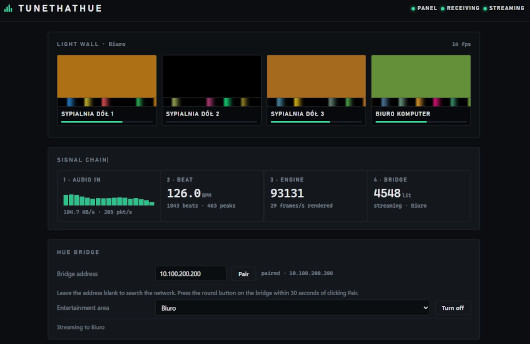
- Live light wall. The panel shows the exact frames sent to the bridge, with a two-second trail under each light—you can see the rhythm, not just the result.
- Sendspin emulation. The daemon speaks the same protocol Music Assistant is used to feed a visualizer, so the effects engine runs unchanged outside Music Assistant.
- Senders for Windows: a Winamp plug-in, a Foobar2000 component, and Sound Capture, which sends whatever is playing on the computer—any player, browser, or game.
Install
- Download from forum.qnap.net.pl or Releases—and install it in App Center (Install Manually).
- Open TuneThatHue from the QNAP main menu.
- Type the bridge address, press Pair, then press the round button on the bridge.
- Pick the Entertainment area and press Turn on.
- Install a sender on the computer that plays the music and point it at the NAS.
Last update: 31 July 2026