
Turn your QNAP NAS into a network print server to manage, share and monitor printers through a secure HTTPS web interface.
Key Features
- Support for USB and network printers (IPP, IPPS, LPD, JetDirect/Socket).
- Secure HTTPS administration with TLS encryption.
- Automatic printer discovery using Avahi/Bonjour.
- Integrated Ghostscript, Poppler and OpenPrinting cups-filters.
- Print queue management, printer configuration and test pages.
- Persistent settings, printer queues and credentials across updates.
- Dedicated start, stop, restart and diagnostic scripts.
Requirements
QTS 6 or QuTS hero 6 minimum. Supports x86_64 and ARM64. Core printing dependencies are bundled.
Quick Start
- Install and start the CUPS QPKG on your NAS.
- Open
https://NAS-IP:16631/adminin your browser. - Log in with username
cupsadmin. - Find the automatically generated password in QTS QuLog Center → Event Logs (search for
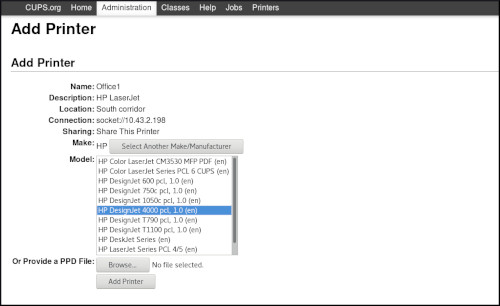
CUPS web ready). - Click Add Printer, select your USB or network printer, and follow the setup wizard.
- Print a test page to verify your configuration.
Useful Information
- Web interface:
https://NAS-IP:16631 - HTTPS port: 16631/TCP
- Bonjour/mDNS: 5353/UDP (when enabled)
- Installation directory:
/opt/CUPS - Service control:
/opt/CUPS/start.shand/opt/CUPS/stop.sh - Diagnostics:
/opt/CUPS/healthcheck.sh - Runtime logs:
/opt/CUPS/logs/
To retrieve your administrator password via SSH:
cat /opt/CUPS/etc/cups/.cupsadmin-password
A browser certificate warning may appear because CUPS uses a self-signed HTTPS certificate by default.
TIP ME !
Your gratitude and finance will help me to continue integration of this QPKG and maintain up to date versions.
Your gratitude and finance will help me to continue integration of this QPKG and maintain up to date versions.

Last update: 17 October 2026