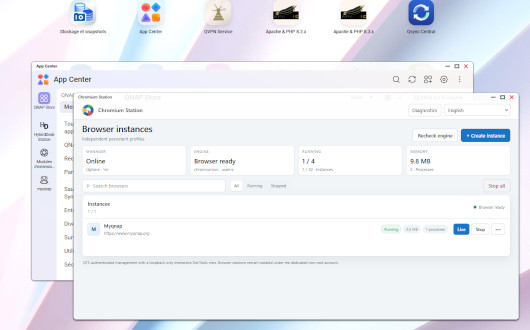
Chromium Station provides isolated and persistent Chromium browser sessions directly on a QNAP NAS.
It is designed for QTS 6.x and QuTS hero 6.x, with support for both x86_64 and ARM64 / aarch64 builds. Each virtual browser runs independently with its own persistent profile, cookies, sessions and settings.
Chromium runs under the dedicated non-root chromiumsvc account with the Chromium sandbox enabled. The management service listens only on the NAS loopback interface and is exposed through the QTS application proxy.
The ARM64 build is now native: the builder detects aarch64, compiles both Chromium Station binaries as ARM64 ELF files, and runs the full native test suite on that architecture. Chromium-build-v98-20261021T113…
Required dependencies
Chromium Station requires:
- QTS 6.x or QuTS hero 6.x
- QMultimedia-Q6
- A supported QNAP NAS architecture:
- x86_64
- ARM64 / aarch64
- A recent QNAP firmware with Linux user namespaces available for the Chromium sandbox
QMultimedia-Q6 is used as an optional runtime dependency source when a required compatible system library is not already bundled or available natively.
No separate Node.js, Go, Python or browser package is required on the NAS itself.
The Chromium runtime, fonts, Fontconfig, GSettings and NSS components needed by the package are prepared and bundled by the build process.
Main features
- Multiple independent Chromium browser profiles
- Persistent browser sessions and cookies
- Native x86_64 and ARM64 support
- Dedicated non-root Chromium account
- Chromium sandbox enabled
- Interactive browser view directly inside QTS
- Back, Forward and Reload controls
- Address bar navigation
- Mouse, keyboard, scroll and double-click support
- Copy, cut and paste between the local computer and virtual browser
- Automatic proportional scaling
- Selectable browser resolutions
- Browser zoom controls
- Adaptive refresh rate and image quality
- Live latency indication
- Automatic DevTools reconnection
- Browser previews
- Runtime and diagnostic logs
- Downloadable diagnostic reports
- 20 interface languages
- QTS / QuTS hero integration
- QTS proxy / CloudLink-compatible access
- Persistent profiles across package restarts and upgrades
Quick Start
- Install and start QMultimedia-Q6.
- Install the Chromium Station QPKG from QTS App Center using Install Manually.
- Start Chromium Station from the QTS desktop.
- Open the Chromium Station interface and use Recheck Browser Engine.
- Verify that the browser engine is reported as available.
- Click Create Browser.
- Enter a browser name and initial URL, for example https://www.google.com
- Click Start.
- Click Live to open the interactive browser session.
Keyboard shortcuts
Ctrl/Cmd + C — Copy
Ctrl/Cmd + X — Cut
Ctrl/Cmd + V — Paste
Ctrl + L — Focus navigation
Ctrl + R or F5 — Reload
Alt + Left — Back
Alt + Right — Forward
Ctrl/Cmd + + — Zoom in
Ctrl/Cmd + – — Zoom out
Ctrl/Cmd + 0 — Reset zoom
Thanks to report bugs into Discord Channel
Your gratitude and finance will help me to continue integration of this QPKG and maintain up to date versions.

Last update: 21 October 2026